Tuesday, August 6, 2019

How to Install Toyota Techstream V14.20.019 for Mini VCI?

Newer version Toyota TIS Techstream 14.20.019 has been tested and verified working great with Mini VCI J2534 cables.


Version: 14.20.019  with older v13.00.022 optional
techstream-v14-20-019-software-1
Compatible device:  Mini VCI cables (SV46-DSV46-D1), Mangoose VCI
Operating system: WinXP/Win7
Language: English Chinese French German Italian Japanese Spanish
techstream-v14-20-019-software-language
How to install Toyota Techstream v14.20.019?
If you use older software 13.00.022, check installation guide here.

Step 1: Install setup
install-techstream-v14-20-019-software-1
Open Techstream _GTS_14.20.019 folder
install-techstream-v14-20-019-software-2

Install Techstream_GTS-14.20.019-NDSI(1)
Select Software language
InstallShield Wizard install
Agree license agreement
install-techstream-v14-20-019-software-3

Enter User name (AADD) and company name (1111), press Next
Press Install
install-techstream-v14-20-019-software-4

Finish install setup successfully.
Click on Finish to exit.
Step 2: Install driver
Open driver folder
install-techstream-v14-20-019-software-5

Install MVCI Driver for Toyota Cable 2.0.1
Press Install
install-techstream-v14-20-019-software-6

Finish install MINI-VCI driver

Step 3: Select VIM
Open Techstream software on desktop
If system prompts Java Runtime message, press No to continue
install-techstream-v14-20-019-software-7

If techstream asks enter activation key, press Cancel
install-techstream-v14-20-019-software-8
Select Setup tab->VIM Select 
install-techstream-v14-20-019-software-9
Select interface as Xhorse MVCI and press OK

Step 4: Activate Techstream 
Open Readme text in Techstream _GTS_14.20.019 folder
install-techstream-v14-20-019-software-10
Paste Techstream.exe”/395070/VM:1
Right click Techstream on desktop and go to Properties 
Replace Target “C:/Program Files/Toyota Diagnostics/Techstream/bin/MainMenu.exe” by “C:/Program Files/Toyota Diagnostics/Techstream/bin/Techstream.exe”/395070/VM:1
install-techstream-v14-20-019-software-11
install-techstream-v14-20-019-software-12

Then press Apply
and OK

Step 5: Install device driver
Connect MINI VCI J2534 cable with computer
Windows will automatically install device driver
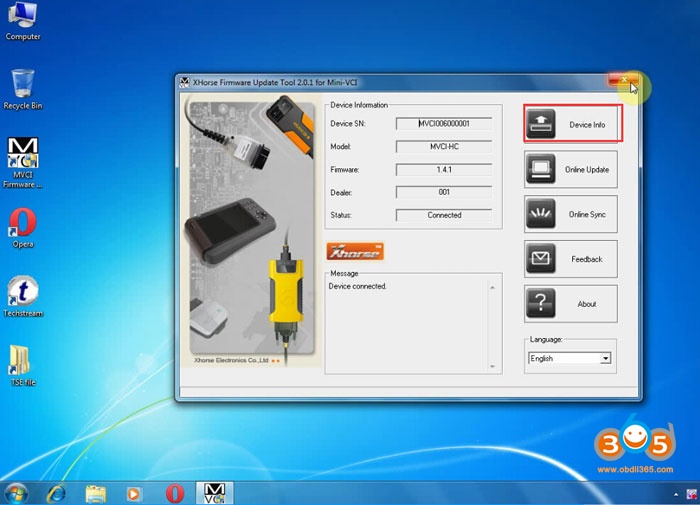
install-techstream-v14-20-019-software-13
Open MVCI Firmware Update Tool->Device Info to check firmware information, firmware version 1.4.1

Step 6: Run Techstream 
Open Techstream software on desktop
Initializing USB Communication
install-techstream-v14-20-019-software-14
If Techstream gives you TIS Access Error, select Offline Mode to continue
install-techstream-v14-20-019-software-15
Select vehicle information
Techstream Software v14 is ready to use.
install-techstream-v14-20-019-software-16

install-techstream-v14-20-019-software-17

install-techstream-v14-20-019-software-18
Done.

Thursday, June 6, 2019

Free Download Toyota Techstream V14.10.028 Software

Latest version V14.10.020 Toyota TIS Techstream has been tested and verified working on issue by obdii365.com engineer.


Software version: V14.10.028
(Crack version. No Activation)
Operation system: Windows 7 32 bit
Toyota Teschstream 14.10.028 has been tested OK with:

techstream-v14-10-028-software
Free Download Toyota Techstream V14.10.028 Software
How to install Toyota Techstream 14.10.028 software?
Step 1: Install Setup
Open software CD
install-toyota-techstream-v14-10-028-sw-1

Open Techstream_V14.10.028 folder
install-toyota-techstream-v14-10-028-sw-2

Copy and paste Techstream_SetupNA_V14.10.028 to desktop
Run Techstream setup on desktop
install-toyota-techstream-v14-10-028-sw-3

Select setup language
install-toyota-techstream-v14-10-028-sw-4

Install Techstream InstallSheild Wizard
Press Next
Accept license agreement
install-toyota-techstream-v14-10-028-sw-5

Enter customer information, User Name: AADD, Company name: toyota, press Next
install-toyota-techstream-v14-10-028-sw-6

Install the program
install-toyota-techstream-v14-10-028-sw-7

Finish

Step 2: Install driver
install-toyota-techstream-v14-10-028-sw-8

Run MVCI Driver for Toyota-Cable 2.0.1
install-toyota-techstream-v14-10-028-sw-9

Install Mini VCI driver for Toyota TIS, press Next
install-toyota-techstream-v14-10-028-sw-10

Ready to install
install-toyota-techstream-v14-10-028-sw-11

Finish driver installation

Step 3: Crack Techstream
Open Techstream software on the desktop
install-toyota-techstream-v14-10-028-sw-12

If windows gives a Java Runtime error, press No to ignore.
Launch Techstream 14.10.028 software
install-toyota-techstream-v14-10-028-sw-13

If techstream requires a registration key, press Cancel
install-toyota-techstream-v14-10-028-sw-14

Select Setup tab->VIM Select, select interface: Xhorse-MVCI
Open readme.txt on software CD
install-toyota-techstream-v14-10-028-sw-15

Copy Techstream.exe”/395070/VM:1
Right click Techstream Properties on desktop
install-toyota-techstream-v14-10-028-sw-16

install-toyota-techstream-v14-10-028-sw-17

Replace MainMenu.exe by Techstream.exe”/395070/VM:1 in Target area
install-toyota-techstream-v14-10-028-sw-18

Then Apply

Step 4: Install Device Driver
Connect Mini VCI J2534 cable with laptop
install-toyota-techstream-v14-10-028-sw-19

Installing device driver software
install-toyota-techstream-v14-10-028-sw-20

Open MVCI Firmware Update Tool
Read Device Info
Device connected

Step 5: Run Techstream
Open Techstream software on the desktop
Initializing USB communication
install-toyota-techstream-v14-10-028-sw-21

Read vehicle information and confirm
Start diagnose vehicle
install-toyota-techstream-v14-10-028-sw-22

install-toyota-techstream-v14-10-028-sw-23

Monday, May 27, 2019

Toyota TIS Techstream vs. Techstream Lite

Look here: How to do Toyota ECU reprogramming? using TIS Techstream or Techstream Lite?
toyota-tis-techstream
What is TIS Techstream:

Techstream 2.0 combines the functionality of TIS and the scantool into a single portable device. With Techstream 2.0, technicians can simultaneously view/analyze on–board vehicle data, browse relevant TIS service documents, and reprogram vehicles all from the driver’s seat via wireless connection to TIS. The Techstream 2.0’s Panasonic CF-31 PC provides a bigger and brighter screen, faster processor, longer battery life, and a bigger keyboard over its predecessor. The Snap-on backpack offers a durable all–in-one package for technicians.
Scantool Diagnostics
Techstream 2.0 offers full support for 1996 – current vehicles marketed in North America. Periodic software updates will be available to support new models. Techstream 2.0 provides quick and easy access to all available systems on the vehicle as well as a one touch vehicle status report (Health Check).
Vehicle Reprogramming
Toyota/Lexus/Scion ECMs can be reprogrammed using the Techstream 2.0 scantool. Techstream 2.0 software version requirements are specified in applicable Technical Service Bulletins (TSBs), which can be accessed with a subscription to this website. Older documents may state to use the TIS Techstream or Diagnostic Tester as being the required tool. Techstream 2.0 techstream is the replacement for the Techstream 1.0 and Diagnostic Tester and can be used for all 1996–current Toyota/Scion/Lexus vehicles marketed in North America.

What is Techstream Lite:

Techstream Lite allows Techstream diagnostic software to run on your PC (see minimum PC requirements) to service Toyota, Scion, and Lexus vehicles. Techstream Lite is an inexpensive alternative to the full TIS techstream system and provides factory level support for Toyota/Scion/Lexus vehicles.
Scantool Diagnostics
Techstream Lite supports DLC3/J1962 based diagnostic functions on 1996 and later Toyota, Scion, and Lexus vehicles marketed in North America. You must have an active professional level subscription to use Techstream software.
Vehicle Reprogramming
Toyota, Scion, and Lexus ECUs can be reprogrammed using Techstream Lite. Available ECU updates are specified in applicable Technical Service Bulletins (TSBs), which can be accessed with a subscription to this website. You must have an active professional level subscription to access the calibration files.

Tis Techstream vs Techstream Lite:
toyota-techstream-tis-vs-lite-version-1

toyota-techstream-tis-vs-lite-version-2
Toyota reprogramming notes: (IMPORTANT)      

It is possible to permanently damage a vehicle controller during the flash reprogramming process. It is especially important to understand that once started, the reprogramming process must not be interrupted, reprogramming devices must not be disconnected and PCs must not be allowed to go into Standby, hibernation or similar power management modes. The information provided herein is intended expressly for use by qualified professional automobile technicians. To prevent damage to your customer’s vehicle and ensure safe service practice, read these materials completely and thoroughly before servicing the vehicle and be sure to follow all instructions.

Toyota reprogramming with a J2534 interface:
Toyota, Scion, and Lexus ECMs can be reprogrammed with the TIS Techstream, Techstream Lite, Diagnostic Tester, or can also be reprogrammed using a Toyota validated J2534 interface. Vehicle recalibration requires the use of the following:
·    Toyota validated J2534 interface
·    TIS Professional Level Subscription
·    Toyota Calibration Update Wizard software (installed along with Techstream Software)
·    Personal Computer running Microsoft Windows XP/2000 or later operating system
Toyota strongly recommends USING ONLY VALIDATED INTERFACE DEVICES that appear on this list.
Toyota works closely with J2534 interface manufacturers to ensure that their hardware works safely and efficiently with our products. Every device listed on this page has been thoroughly tested and validated on Toyota, Scion, and Lexus vehicles.
It is important to understand that only the specific devices, firmware, DLLs and APIs listed here have been tested by Toyota. We do not recommend use of any other J2534 device, firmware, DLL or API that is not listed here. Changes to J2534 hardware/software is outside of Toyota’s control; in some cases, changes made to device hardware/software can negatively impact reprogramming performance. Toyota makes every effort to continue to work with J2534 interface manufacturers to ensure continued product compatibility as our respective products evolve.

Toyota J2534 interface:
The cheapest: mini vci cable for Toyota (19.99 usd)
mangoose-ecu-reprogramming
The newest: Vxdiag vcx nano Toyota Techstream 14.00.018
vxdiag-toyota-reprogramming
The best: J2534 reprogramming tool for universal vehicles
jdiag-j2534-reprogramming
Test report: confirmed to work for ECU reprogramming

On a side note,
All Toyota J2534 interfaces above come with a decent Tis Techhhstream crack.