Showing posts with label Toyota techstream. Show all posts

Friday, June 21, 2024

Diagnose Toyota x1001 and x1002 Codes with Techstream

 How-to: Determine Toyota Maximum Engine Speed History (RPM) with Techstream software.


Disclaimer:

It is not our work. Credit to Pyrenees from GT86 forum.


Background: 

A member drives a 2023 Toyota 86 6MT, ~15k miles. Toyota mechanic has pulled the code x1002 and x1001 from the ECU and these codes indicate and “over-rev”. They cannot or will not explain what that means and if it is the policy for those codes to void the engine. Toyota denying warranty claim due to supposed abuse and the x1001 and x1002 codes being given as “over-rev”

It seems like this means they are accusing me of “money shifting” the car and destroying the engine, which violates the abuse clause in the GR86 warranty.


Purpose:

You can access x1001 and x1002 VCH/RoB codes as well as a bunch of other misc data from your GT86 with Techstream. Share it here in case people wanted to check their own cars.


Techstream Version & Installation

He used to utilize Techstream v14 for Toyota Sienna and LX470, but it was simply too old a version for the 2022/2023 GR86, so he would like v18 software for personal use and set it up.

He successfully installed Techstream v18.00.008 on an old Thinkpad with Windows 7 Pro after spending a ton of time on it.

The main thing to consider is that the drivers for Techsteam J2534 cable (Mini VCI cable, vxdiag vcx nano for Toyota, Xhorse MVCI pro etc) the interface between your OBDII port and the USB port on your laptop) are 32-BIT.


So this means that your best bet is to use a 32-BIT version of Windows, which is NOT common. Most Windows versions are 64-bit unless it’s for a particular reason like this. Anyway, you need to have patience and at least some level of technical skill to get it installed.

Once Techstream is installed, connect the cable to the OBDII port and the USB port on your laptop. You might get a “cannot connect to VIM” error or something like that when use the mini vci cable. That usually means your USB port setup or Mini-VCI driver isn’t working. Keep one other thing in mind, when you install the Mini-VCI cable driver, MAKE SURE the USB cable is plugged in during that process, not after.


How to Determine RPM?

x1001 and x1002 are individual codes, the first is Maximum Vehicle Speed and the second is Maximum Engine Speed.  x1001 shouldn’t mean a thing warranty-wise. x1002 is the one that they are looking for.

In Techstream, when the main page loads there will be a row of tabs across the top, System Select is the primary tab. Initially, you have to click on all of the individual ECUs to access them (you can run the health check to do this as well). Unless you are making active changes, poking around is unlikely to cause a problem.

If you’re looking for the supposed engine over-rev codes, click on the Engine Control System ECU. You can see live data there. Go to the “stored data” tab across the top, and there will be an option for the VCH (vehicle control history) and RoB (records of behavior). You’ll have to shut the engine off and put it back in ignition mode (2nd position/press), and then it will pull the data. You can also pull Health Check data in a similar way, but I found the screenshots to be more helpful than the exported CSV file, which was awkward to navigate though.

Without further ado, this is what the sanitized x1001 and x1002 data looks like from a 2022 GT86. screenshots are attached:

Diagnose Toyota x1001 and x1002 Codes with Techstream 1

Engine Control System

Diagnose Toyota x1001 and x1002 Codes with Techstream 2

Vch Rob

Diagnose Toyota x1001 and x1002 Codes with Techstream 3

Max Engine Speed

Diagnose Toyota x1001 and x1002 Codes with Techstream 4

Max Vehicle Speed

Diagnose Toyota x1001 and x1002 Codes with Techstream 5

Health Check

It’s actually rather informative. It keeps the last four “highest” values with other data like odometer value. -3 is the oldest data column, 0 is the most recent. This seems to correlate with the elapsed time. Clutch switch “on” means the clutch is depressed (and if you think about how the clutch has to be depressed to start the car, this also makes sense). Current key cycle at the top, but the key cycle within the data was the key cycle where the data snapshot was collected. Then there’s a whole health check page you can poke around on.


Hope it helps.

www.obdii365.com

Wednesday, December 20, 2023

How to Choose a Techstream Cable for K-line Toyota?

 As titled, what is a better Techstream cable for K-line Toyota models?


Here is the clue.


1.Mini VCI cable

Firmware 1.4.1: The latest 1.4.1 firmware interfaces have both CAN chip (xx1050) and K-Line chip. so they may full support these 2 protocols for Toyotas since 1996+. Only missing VPW chip (and si9241a for L-Line).

Firmware 2.0.4: 2.0.4 cable is now only available in ali or ebay, they are clones of xhorse mini vci j2534. The geniune cable is discontinued. The clone cable is twice as expensive as 1.4.1 cable.  The Mini vci clone also has bugs in K-line Toyota. If you need to troubleshoot K-line Toyota/Lexus, 1.4.1 is fine.


Read more:

Toyota Techstream Cable: Mini VCI V1.4.1 vs V2.0.4


2.

Xhorse MVCI Pro

original XHORSE MVCI PRO J2534 (XDMVJ0) cable diagnose Toyota Land Cruiser 100 (2002-2005). TIS detects cable, but is not able to connect to vehicle, diagnose looks like this:

The issue is the K-line, because apparently the K-line is the only protocol in Land Cruiser 100.

Cable is updated to latest firmware (1.2.5)
Drivers for Toyota installed
Tested on TIS 17.00.xx and also on latest 18.00.xx, same result.

xhorse mvci pro cable

But sometimes the early versions of TIS will work where the later version won’t.
Ver 10 or 12 worked for me.


3. Old MVCI 1.4.3 cable

the old Chinese MVCI 1.4.3 cable is working, so TIS is fine

MVCI 1.4.3 cable

4.

VXDIAG VCX NANO for Toyota

VXDIAG only has partial K-Line support. It works better on 2005 up Toyota models.

We had some other customers reported that vcx nano failed to test on some 2002 2003 Toyota with K-line protocol.


vxdiag does not work on 2002 SC either. It works fine with 2007 SC. 

It is a known problem of vxdiag, failed to work on 02 03 Toyota K-line protocols.

But vxdiag can be used as j2534 passthru device for official techstream subscription.

With the Techstream legal subscription, you can do some software updates, sensor calibration and other things. You can never do it with the cheap cables.


5. Tactrix Openport 2.0

The Tactrix is fine for CAN bus devices, but has problems with some K-Line devices.

The hardware looks like it’s up to the job, and a driver update could solve the Toyota specific problems.


In sum:

K-line seems to only be required for older vehicles. It’s support for active tests that you need. If need to troubleshoot old k-line models, get the mini vci cable.

If don’t have k-line Toyota, get the mvci pro or vxdiag.

Both mini vci and mvci pro don’t do reprogram TPMS sensors when switching wheels, replacing sensors, etc. but vxdiag performs well. The hardware cable solution most frequently mentioned there is to get a VXDIAG VCX NANO.

Tuesday, May 16, 2023

Mini VCI Techstream Bleed the Brakes on Toyota

 Tutorial: how to bleed the Brakes on your Toyota/Lexus using Toyota Techstream software on a laptop.

So many ways to bleed brakes, just adding this one to the tool belt. Seems like an efficient way to push a higher volume of fluid so may be a good option for a full flush, especially when time is short.


Model example: Land cruiser LC200 series.

Background:

Finish a complete break upgrade on a Land cruiser 200 series.


Procedure:

Get a cheap mini vci cable and proper software version.

Here v12 (older version has the Unitiny feature) was used and set it up on VMware Win7 32bit.

Insert mini vci obd2 cable into car

Mini VCI Techstream Bleed the Brakes on Toyota 1

Connect the vehicle, now go into the ABS vehicle stability control on traction

Go to Unitiny->Air Bleeding

Mini VCI Techstream Bleed the Brakes on Toyota 2

Mini VCI Techstream Bleed the Brakes on Toyota 3

It tells us here that this function is used to purge air from the hydraulic braking system

and then we just follow our prompts.

Mini VCI Techstream Bleed the Brakes on Toyota 4

I am going to start with the rear left line which is the furthest line from the master cylinder.

Mini VCI Techstream Bleed the Brakes on Toyota 5

Mini VCI Techstream Bleed the Brakes on Toyota 6

i’ll hit the next button and it says here perform the following operations.

open the bleeder plug.

you see the bleeder plug is open.

Mini VCI Techstream Bleed the Brakes on Toyota 7

Mini VCI Techstream Bleed the Brakes on Toyota 8

because we’ve got gravity dripping fluid through it.

press the next and wait for the timer and it says note do not depress the brake pedal.

now we’ll hit our next button and you can hear funky stuff happening under the bonnet.

now it says please perform the following operations close the bleeder plug

close off our bleeder pug press next

wait for timer

Mini VCI Techstream Bleed the Brakes on Toyota 9

Mini VCI Techstream Bleed the Brakes on Toyota 10

Mini VCI Techstream Bleed the Brakes on Toyota 11

hit our next button and it says resetting what that actual resetting is i’m not sure but it must have something to do with the master cylinder.

air bleed is complete. press next to select another line or press exit to exit the function.

i’m going to hit next i’m going to do that right rear line again and i will show you what it looks like at the master cylinder.

Mini VCI Techstream Bleed the Brakes on Toyota 12

here’s what it looks like at the wheel cylinder

Mini VCI Techstream Bleed the Brakes on Toyota 13

and our air bleed is complete on that right rear line.
now i will continue to  do this process i will repeat it about five times per wheel cylinder just to make sure that i get all of that air out.

i’ve got plenty of fluid i’m pushing dot four fluid through it now.

now the front left is a little bit different in that it asks you to hold the brake pedal

then press next let the timer run its course and then release the brake pedal and press next that’s quite interesting so it looks like it doesn’t actually bleed fluid through the wheel cylinder

Mini VCI Techstream Bleed the Brakes on Toyota 14

Mini VCI Techstream Bleed the Brakes on Toyota 15

Mini VCI Techstream Bleed the Brakes on Toyota 16

and let’s try the front right same thing.

press and hold the brake pedal hit next, without releasing the bleeder plug then release the brake pedal and hit next.

so on those two front wheel cylinders i will open the bleeder plugs and just let gravity bleed through there and push any air out that might be sitting in those wheel cylinders.

Mini VCI Techstream Bleed the Brakes on Toyota 17

Mini VCI Techstream Bleed the Brakes on Toyota 18

Mini VCI Techstream Bleed the Brakes on Toyota 19

CAUTION: If air is bled without using the Techstream,damage or accidents may result. Therefore, always use the Techstream when bleeding air​.
Worked great for me.


http://blog.obdii365.com/2023/05/16/bleed-the-brakes-on-toyota-with-mini-vci-techstream/

Tuesday, April 11, 2023

Mini VCI Tecshtream no Proace in Vehicle List Solution

 Some users reported that they got a problem connecting Toyota Proace 2017+ with Techstream. There is no Proace in the vehicle list. Try different techstream cables (mini vci, mangoose, vxdiag vcx nano toyota) and software versions, all the same.

Mini VCI Tecshtream no Proace in Vehicle List

Here is the clue.

Toyota Proace van is based on a PSA platform. Toyota Proace is a Peugeot Expert and Citroen Jumpy. PSA made Proace for Toyota.

For ProAce project TME has decided the adoption of PSA technical documentation and diagnostic tester.

So you cannot find Proace in Techstream. You will need Diagbox.

Techstream is for all Toyota and Lexus except Supra and ProAce. Supra needs Toyota ISTA* and Proace requires diagbox.


Where to download/get Diagbox for Proace?

Check and download ISTA & Diagbox license for Supra and Proace here.

toyota proace diagbox 1

toyota proace diagbox 2

*Toyota ISTA (which is based on the BMW ISTA) is a seperate software package from Techstream but it does need Techstream installed. It’s specifically for the new Toyota Supras since they’re made by BMW and have different ECUs.

Wednesday, March 15, 2023

Openport Techstream V15 Review on Corolla

 I order a Tactrix Openport 2.0 clone with gold connector from a well-known Chinese online store (obdii365.com). Toyota techstream V15.30.026 downloaded from Rutracker. 

We put the drivers from the kit with an adapter, then install techstream.
Select vehicle.
Openport Techstream V15 Review on Corolla  1

Openport Techstream V15 Review on Corolla 2


Openport Techstream V15 Review on Corolla  3

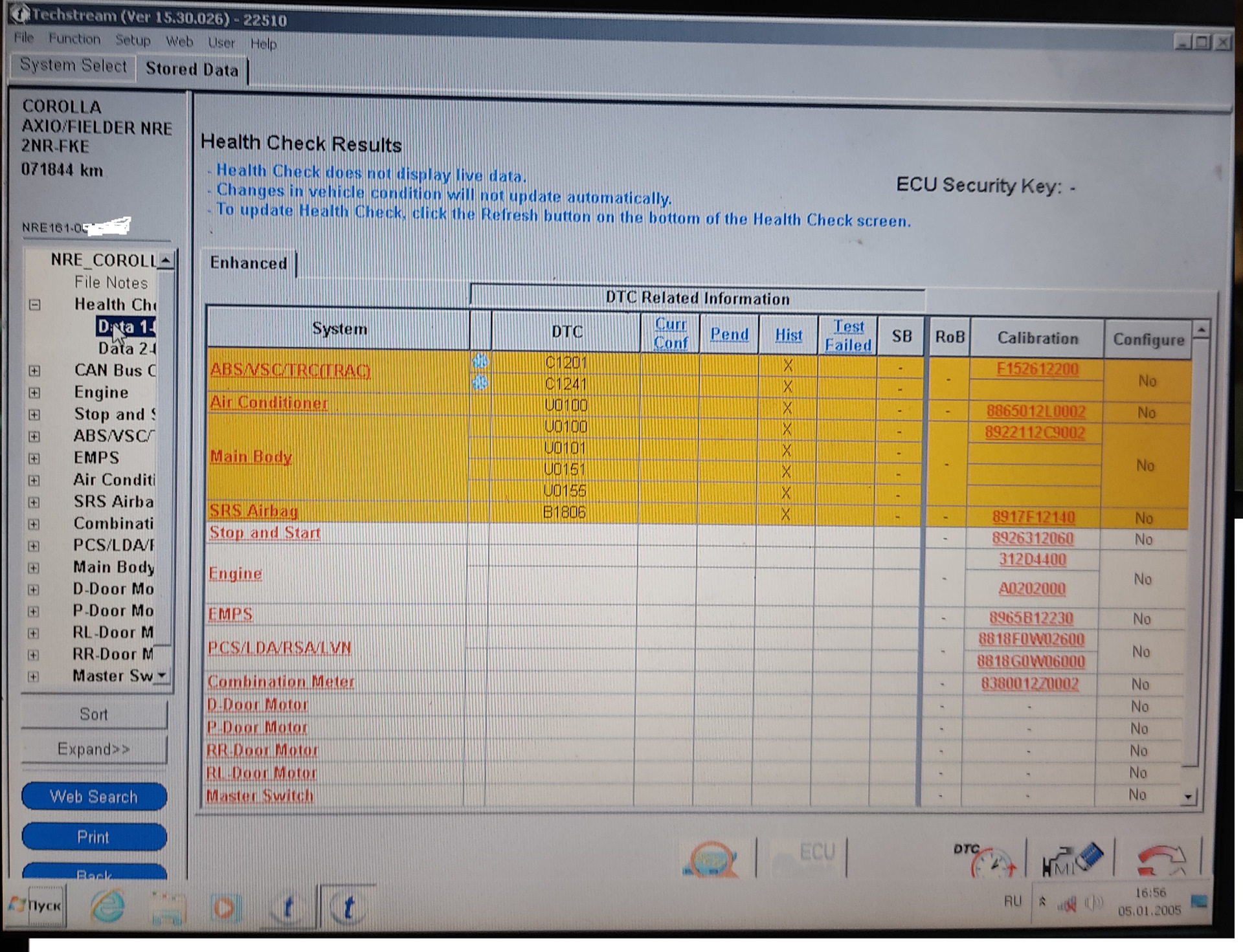
Click Health Check and all modules are scanned for availability and errors

Openport Techstream V15 Review on Corolla  4
picture from the last scan, since erasing errors, the mileage is about 300 km
Openport Techstream V15 Review on Corolla  5

with such errors passed the first scan

after returning to the System select tab, it becomes clear which modules are polled and which are not (with *)

Openport Techstream V15 Review on Corolla  6

then I reveal the content of Customise, here is what we can customize,
I set myself a consumption in liters per 100 km, so it’s more familiar

You can see a lot of customize setting options, 
disable/enable slide roof open warning
disable/enable key remind sound
disable/enable side seatbelt warning buzzer
disable/enable front passenger side seatbelt warning buzzer
disable/enable tail remin buzzer
disable/enable refrigerant shortage check
disable/enable ODO display time after IG off setting
disable/enable lighting time
disable/enable I/L when ACC off
disable/enable I/L ON W/Door Key Unlock
and much more. 

Openport Techstream V15 Review on Corolla  7

Openport Techstream V15 Review on Corolla  8

Openport Techstream V15 Review on Corolla  9

Openport Techstream V15 Review on Corolla  10

Openport Techstream V15 Review on Corolla 11

Openport Techstream V15 Review on Corolla 12

Openport Techstream V15 Review on Corolla 13

Openport Techstream V15 Review on Corolla 14

Openport Techstream V15 Review on Corolla 15

Openport Techstream V15 Review on Corolla 16

Openport Techstream V15 Review on Corolla 17

Next Utility is tests or module calibrations

Openport Techstream V15 Review on Corolla 18

Openport Techstream V15 Review on Corolla 19

Openport Techstream V15 Review on Corolla 20

Openport Techstream V15 Review on Corolla 21

Openport Techstream V15 Review on Corolla 22

Openport Techstream V15 Review on Corolla 23

Openport Techstream V15 Review on Corolla 24

Openport Techstream V15 Review on Corolla 25