Tuesday, August 10, 2021

Free Download Toyota Techstream V16.20.023

 TOYOTA Techstream V16.20.023 (08/2021) is newly tested working like a charm.

Techstream is the replacement for diagnostic tester. It combines the functionality of TIS and scantool in a single portable device. With TIS techstream, technicians can simultaneously view / analyze on-board vehicle data, review relevant TIS service documents, and reprogram vehicles from the driver’s seat via wireless connection to TIS.

TOYOTA Techstream V16.20.023

Driver MVCI for x64 OS – Techstream 16.20.023 setup.exe Link:
https://yadi.sk/d/SkJ5W7dQLEhwSg

Password: NO PASS!!!

Size:  245MB

Version: Toyota Techstream V16.20.023 (08/2021)

Language: Chinese, Spanish, German, French, English, Italian, Japanese

Source: forum and need key by providing the ID and area.


Toyota Techstream V16.20.023 workable cable:

Mini VCI cable (both item no. SV46-D1 and item no. SV46-D at obdii365.com) for toyota-scion-lexus vehicles.


Toyota Techstream V16.20.023 Installation:


Part 1. install Techstream software

Open the folder of Toyota Techstream V16.20.023 [2021.08], then right


Click on “Toyota Techsteam V16.20.023” and select “Run as administrator.

install  TOYOTA Techstream V16.20.023 1


Choose Setup Language.

Preparing setup.


Install Techstream Software on your computer.


Accept the terms of the license agreement.


Please enter your name and the name of the company for which you work.


Click on “Install”.


InstallShield Wizard has successfully installed Techstream software.

install  TOYOTA Techstream V16.20.023 2


Part 2. Run TS_Loader


Right click on “Techstream” on the desktop and select “Open file location”.

Then right click on “TS_Loader” and select “Send to” Desktop (create shortcut)

install  TOYOTA Techstream V16.20.023 3

install  TOYOTA Techstream V16.20.023 4

Part 3. Open Toyota Techsteam V16.20.023 software


Select Area (Japan, North America, Europe, Other).

install  TOYOTA Techstream V16.20.023 5


We select “North America” and then “English”, then enter the dealer name, dealer code and dealer phone in the Techstream Configuration.

install  TOYOTA Techstream V16.20.023 6


Open the software of Toyota Techsteam V16.20.023 and ready to use.

You can configure the area and language.


That’s all.


Thanks


www.obdii365.com

Wednesday, May 12, 2021

Toyota Techstream V16.00.017 Installation Guide

 Latest Version Of Toyota Techstream V16.00.017 tested verified working with MINI VCI J2534 cables (SV46-D1 and SV46-D). Obdii365.com provides software and driver installation tutorial here.


Software can be downloaded free on previous post

Free Download Toyota Techstream V16.00.020 V16.00.017 Crack


How to Install Toyota Techsteam V16.00.017 on Win10 (64bit)?

System requirements: WINDOWS 7/8/8.1/10 x32/x64

Here we tested it on Win10 64bit system.  


Main steps:

Step 1: Install Setup and Framework

Step 2: Install driver and set com port

Step 3: Activate software via patch

Step 4: Run software


Step 1: Install setup

toyota-techstream-16-00-017-install-1


Copy and paste Techstream V16.00.017 and driver folder to desktop

toyota-techstream-16-00-017-install-2

Open Techstream V16.00.017 folder, run Techstream_Setup_V16.00.017
Install InstallSheield Wizard
Accept license agreement

toyota-techstream-16-00-017-install-3

Enter user name: 123 and Company name: 567, press Next to continue

toyota-techstream-16-00-017-install-4

Press Install until finished

toyota-techstream-16-00-017-install-5

Install NET Framewoork 4.7.2
Accept license terms

toyota-techstream-16-00-017-install-6

Press Install until completed


Step 2: Install driver

toyota-techstream-16-00-017-install-7

Install MVCI driver for 32bit or 64bit system, here we install driver for 64bit

Open driver folder and extact Driver MVCI. Run driver for 64bit
Select destination folder
Select create a desktop icon
Then press Install

toyota-techstream-16-00-017-install-8

Finish install MVCI driver

toyota-techstream-16-00-017-install-9

Run MVCI MultiDriverX64 on deskotp as Administrator
Select firmware version 1.4.8 and Install
Successfully installed the driver version 1.4.8

toyota-techstream-16-00-017-install-10


Go to Device Manager->Other Devices-M-VCI->Update Driver Software

toyota-techstream-16-00-017-install-11

Browse for driver software on destination folder you saved previously

toyota-techstream-16-00-017-install-12

Windows successfully updated your driver software

toyota-techstream-16-00-017-install-13

Go to Device Manager->Other Devices->USB Serial Port->Update Driver Software
Browse for driver software on destination folder C:/Program Files(x86)/Autokent MVCI MultiDriver X64/1.4.8
Windows successfully updated your driver software

toyota-techstream-16-00-017-install-14

Make sure the COM Port is set to #4


Step 3: Activate Techstream 16.00.017

Run Techstream software deskotp shorcut
Select Area region i.e Europe
Select language

toyota-techstream-16-00-017-install-15

Enter Repair Name, Code and Phone all with number “1” and press OK

toyota-techstream-16-00-017-install-16

If techstream asks for an activation/registration key, press Cancel to exit

toyota-techstream-16-00-017-install-17

Go to Setup->VIM Selection->Select interface as MVCI Autokent-X64 1.4.8

toyota-techstream-16-00-017-install-18

Copy and paste Techstream Patch 64bit from software folder to desktop
Run Techstream Patcch 64bit on desktop

toyota-techstream-16-00-017-install-19

Select vehicle information


Step 4: Run software 
Software is ready to use

toyota-techstream-16-00-017-install-20

toyota-techstream-16-00-017-install-21


http://blog.obdii365.com/2021/05/12/install-and-activate-toyota-techstream-16-00-017-software/

Toyota Techstream V16.00.020 V16.00.017 Free Download

 Here comes the latest Version Of Toyota Techstream V16.00.020 / V16.00.017 for 1996-2022 for Toyota , Lexus and Scion including American LHD and UK RHD cars and including all CANBU / CAN BUS based.


Toyota Techstream V16.00.020

https://disk.yandex.com/d/uwmVBJUe3pf6_w


Techstream V16.00.017:
https://mega.nz/file/p5UwhbpL#uX8uBg4TGeYUtQQRU5ZBz5Q9LswlrxrhwfXYAYyUzS0

No password.  No password. 

100% tested safe link

https://share.weiyun.com/VzDZtfu8

password: h7vbqb

File including

  1. Mini VCI driver (x64 & x86)
  2. Techstream older version 12.20.024, 13.00.022
  3. Techstream V16.00.017
  4. Techstream Patch

toyota-techstream-v16-00-0017

System requirements: WINDOWS 7/8/8.1/10 x32/x64

Supported language: English, German, French, Spanish, Italian, Russian, Chinese, Turkish etc

mini-vci-toyota-techstream-v16-00-020-1

mini-vci-toyota-techstream-v16-00-020-2


It’s Cover Europe, UK, And North America Cars

– Loader Included, No Need Key Activation

– Calibrations File From 2000 To 2018, Are Included Also !!!, Installation Video Included Also.

– Toyota Techstream Can Work With Any J2534 Interfaces ( AVDI, Openport, Autel J2534, MongoosePro…)

– J2534 Drivers/Software Need To Be Installed Firstly ( Important )


For the above link, please try them at your own luck because it is copied from dk and mhh forum by the moderator.


obdii365.com engineer already tested Techstream V16.00.020 with their own Mini VCI cable (both SV46-D1 and SV46-D). And make a video on how to install Techstream V16.00.020 software.


Enjoy


www.obdii365.com

Tuesday, March 16, 2021

Techstream Erase Toyota C1336 Fault Code

You can use Techstream with few steps can easily clear C1336 fault code on Toyota/Lexus.


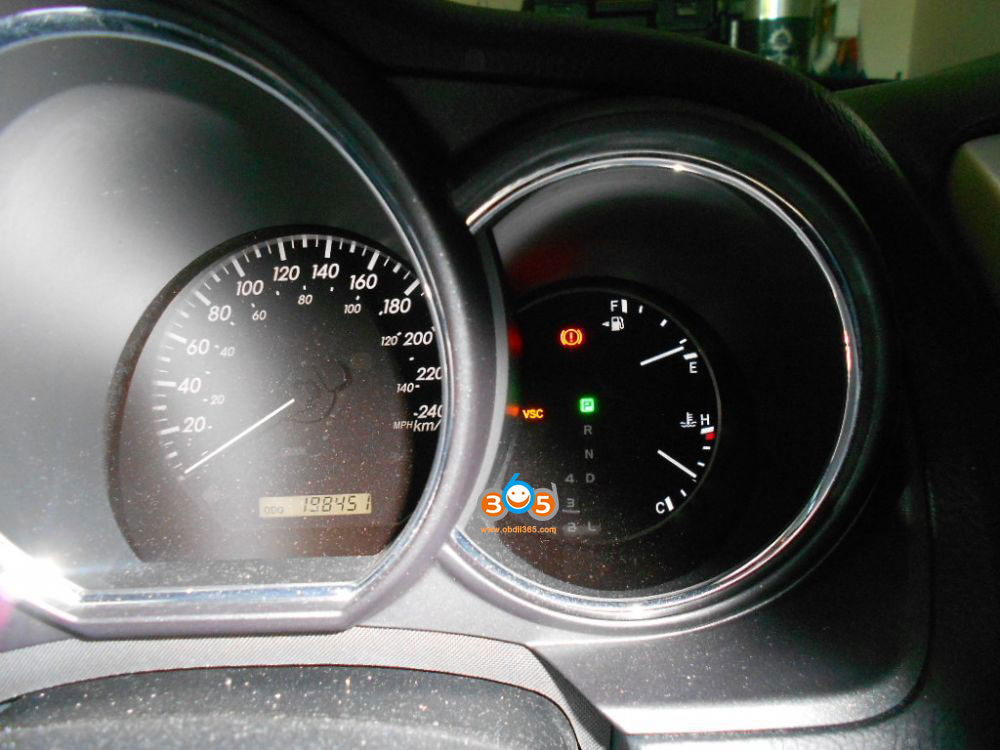
C1336 means "zero point calibration of yaw rate sensor undone." The yaw rate sensor feeds into the VSC, so if it isn't working, the VSC won't work and you'll get the "VSC / TRC" light.
 tec


How to clear C1336 fault code with Toyota techstream?
techstream-clear-c1336-fault-code-1

techstream-clear-c1336-fault-code-2

techstream-clear-c1336-fault-code-3

techstream-clear-c1336-fault-code-4

techstream-clear-c1336-fault-code-5

techstream-clear-c1336-fault-code-6

Done. 
Test drive the car and no vsc or traction lights.


Tuesday, March 9, 2021

Can Techstream Program 2019 RAV4 Key?

 Question:

I am having a hard time trying to get a second key programmed with techstream v14. It appears that you must now copy a seed code and paste it to the TIS site.

Has anyone found a work around to getting the 2019s programmed for a second or third key?

I even downgraded to ver 12 & 13 , ver 12 doesn't even recognize the suv when im in the classic key registration menu and 13 has the same issue as above.


Answer:

Yes, techstream will program key for 2019 RAV4.

Toyota changed the rule for add keys for some cars from 2019. Now you need passcode for adding second key. You need to buy Security Profession subscription and calculate passcode from Toyota official.

techstream-passcode-1

techstream-passcode-2

If you don't want to pay for software license, go for Lonsdor K518ISE, it is a good solution via OBD.

For 2019 RAV4, it requires Toyota all keys lost online calculation license.

Supports All Keys Lost - Latest Toyota 0410 Smart Keys -- Avalon - RAV4 - Wildlander - Highlander.


For example:

Program Lexus UX250h 2019 All Key Lost with Lonsdor K518ISE + H0440c

Toyota shares same operation but use different emulator keys.


http://www.key-programmer.org/2021/03/10/will-toyota-techstream-program-key-for-2019-rav4/

Wednesday, August 5, 2020

Mini VCI Toyota Techstream V14 Setup on WinXP 32BIT

Here's the customer feedback on setting up Mini VCI Toyota Techstream V14 software on Windows XP 32bit system.

"I finally got it to work.   I had to use the Techstream 14 files and use the 32bit patch as a connection button. 

For Windows XP 32bit:
1. Install "Techstream_GTS_14.20.019_NDSI"

2. Install "Mini VCI Driver for TOYOTA"

3. Copy and Paste "Techstream Patch 32bit" & place it next to your Techstream Icon on Desktop

4. Hook MINI VCI J2534 Cable to vehicle OBDII port and computer

5. Turn car key to "On" position, lighting up dashboard

6. Start MVCI Firmware Update Tool

7. Start Techstream Software

8. First try connecting to vehicle byway of Techstream software

9. If unsuccessful, try connecting byway of clicking "Techstream Patch 32bit"

10. If #9 is successful, always use it as your connection icon 

Monday, April 20, 2020

Techstream Software Version & Required Adapter

Best I can tell the only XHorse interface firmware version that I used that worked with it is mini vci cable 2.0.4, these are cloned versions of Techstream and the XHorse cable interface, the real Toyota Techstream costs nearly $2000.

Using Techstream 12.30.017 (newest: v14.20.019) with the cheap Mini VCI Cable J25345 over here (Firmware 1.4.1) on a HP-Zbook with Windows 10-64bits prof.
Installed it using the 64bit for Windows 7/8 instructions previously mentioned and on
blog.obdii365.com
mini-vci-16-pin-cable

You can actually check all stages of the installation without connecting to the car:
First make sure to follow the unpacking/copying instructions in the 64-bit installation instructions before plugging in the cable in the USB port. When installed correctly you should be able to run the firmware update tool to check the firmware. Just do NOT update, only use it to see if the cable is recognized and reports back its firmware version + “connected” status.
If this is OK then at least your interface should be installed correctly, showing a red LED in the process.
Then install Techstream and apply the registry fixes (either manually or by the downloadable registry mod file), also previously mentioned. You can also manually point the original Techstream interface entries in the registry (same location) to the same Xhorse files just to be sure. These settings point Techstream to the correct location of the XHorse driver used for the MVCI Cable.
Also do not forget the TISFUNCTION=0 modification in the IT3System.ini file. If you get “unable to connect to MCI” when connecting to a vehicle most likely these registry settings are not fully correct.
When you now start Techstream with the TSloader make sure the correct interface is selectable (not grayed out) and selected, otherwise re-check the previous setting. Then just connect to vehicle (without actually being connected, just have the MVCI cable connected to the USB port) and you should get no errors but Techstream should eventually (after time out…) come up with a window where you can manually select your vehicle code etc etc.
When I then connected to my RAV4 it connected nicely and I could readout my TPMS sensor ID’s which was my main objective. The interface is flashing green during communication with the vehicle.
So be assured: Techstream can work on a Windows-10 64bit Prof. laptop without the need of a virtual machine.

Wednesday, March 4, 2020

Techstream Fixed 2007 Lexus LS 460 VSC Lights on

Car model and year: 2007 LS 460 Base model

Symptom: I have had the front two wheel hubs replaced , however I have the VSC, ABS and AFS Off lights on. I used BlueDriver ODD II Bluetooth scanner to get trouble code C1236 LEXUS – Foreign Object Attached On Tip Of Left Front Sensor. When I clear the code it comes right back when I drive the car.
Code is coming back because the problem is still not solved.

What to do next?
Thinking about also ordering a Mini VCI Toyota Techstream cable so I can see more detailed facts about the code.

Update:
Last night I did not have time to jack up the car and put a multimeter to the wire harness connector at the ABS sensor, so I did some other troubleshooting.
I opened the fuse box on the passenger side and checked all the fuses and they all seemed in tact none were blown.
Then I tried looking at the ABS ECU connectors but could not fully pull it and disconnect all the connectors and clean it, so I decided to pull the grey connector that sits on top of it. Once I did that I started the car to see what I got and I got the message of “Break Malfunction pull over immediately…” you know the message.
So that tells me that that ECU is working as it should, I shut the car off , plugged the connector back and started the car again and that message went away.

As noted before I plan on checking the voltage to the connector for the correct reading to eliminate that, if it reads correct then it must be the sensor itself and I will have to pay to get the hub taken off and replaced. (my garage tool arsenal is not that vast!).

I ordered the part off of RockAuto so I want to exhaust all the possibilities.The shop just installed the part, I have a re-order/warranty replacement on standby from RockAuto but will still have to pay for labor.

This is where Toyota TIS Techstream would really help you out.

Sunday, December 29, 2019

Mini vci or Mongoose Techstream Cable to Register Lexus TPMS?

I was searching for a preferred tool for dealing with my TPMS nonsense. Dumbe tire guy broke one while putting on my new tires and are too dumb or do not have the right tool (or both) to unlock the ECU and register the new TPMS module.
I would like to purchase a tool to takes care of this issue as i see it happening again and again.
What is the preferred tool to buy that will do it all (unlock ECU) and do what needs to be done to support our TPMS requirements?

After search on lexus club forum, i find some clues. Here are some real user experience.
Mini VCI J2534 cable
1)
Download techstream and invest in a mini vci OBD-II cable. Best $20 buck I’ve spent and I was able to reprogram the ECU with the new TPMS reg code plus more. You will also need a TPMS scanner to pull the reg code off each sensor, but that is if you already have the sensor inside the tire.
I bought the cable here https://www.obdii365.com/wholesale/mini-vci-for-toyota-with-toyota-tis.html
It works on my 2006 GS. I haven’t tried on my 2013.

2)
I have the exact same mini vci cable and I cannot get it to program my TPMS sensor. I read it could be due to the dongle being on the older firmware not the 2.0.4 firmware and not supporting new protocols. Worked just fine on my 3GS but not my 4GS to program the TPMS. I could read all the data from the car but cannot write any new values.
That’s the exact problem I get and from my research it seems like you need a firmware 2.0.4 cable in order to resolve this problem with newer cars. You cannot unfortunately update the existing cable to that firmware because the newer 2.0.4 cable has additional security hardware in there as well.

3)
I have that exact same cable. You cannot write new TPMS sensor values with that cable on the 4th gen Lexus GS. Worked just fine for me on my 3rd Gen GS. 4th Gen GS requires a different newer cable with additional security hardware on it.


The mangoose JLR/Toyota/Volvo 3-in-1 vci cable 
I read that as well but it seems like firmware 2.0.4 is a hit or miss. I have one more cable on hand. It’s a 3-in-1 Toyota/Volvo/JLR, luckily, I have 2 of the 3 vehicles listed.
http://www.obdii365.com/wholesale/mangoose-jlr-volvo-toyota-scanner.html
mangoose-jlr-vci-cable
I purchase the Autel Maxitpms ts201 scanner. It’s really basic but it tells you the ID code, PSI, temp and battery condition. The best $50, on sale price, spent. I’m going to play with this on my other GS this weekend since Lexus said one of the batteries is low. I want to see how accurate the battery condition is.
autel-tpms-ts201-1

autel-tpms-ts201-2
Good news. The Mongoose Toyota/JLR OBDII will write to the ECU. I can only say this for the 2013 model. I don’t have a later model I could try on. Well shoot. I have my 2019 UX as well.
mangoose-toyota-techstream-tpms-1
mangoose-toyota-techstream-tpms-2

mangoose-toyota-techstream-tpms-3
I tried a couple times with my new set and old set. I reprogram the old set back in.
mangoose-toyota-techstream-tpms-4 

Test result:
Got mine in today and works like a charm.  MIni VCI cable failed to register TPMS on 4th gen GS, but the mongoose cable did it no problem.