Monday, June 6, 2022

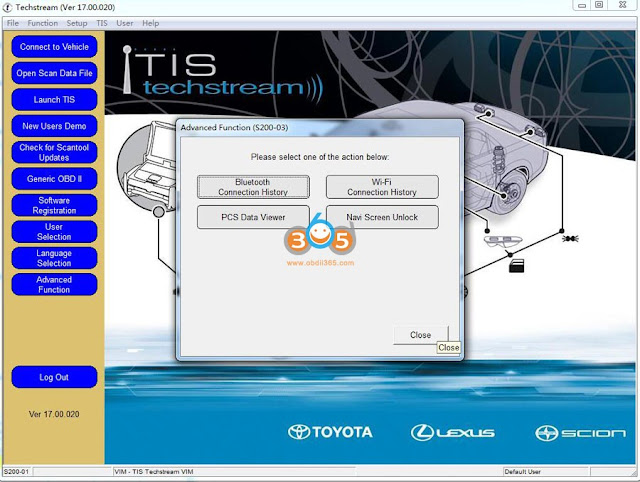
Free Download Toyota Techstream V17.10.012

 (06/2022) Latest version TOYOTA, LEXUS, SCION diagnostic software goes to V17.10.012.


Version 17.10.012 Software
Last Updated: 6/2/2022

Region: All regions
Type: Diagnostic tool Software
Languages: English, Multilanguage
OS: WinXP, Vista, Windows7, WIN8, WIN10

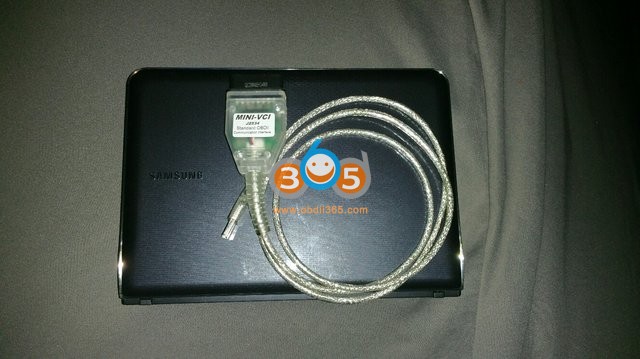
Compatible devices: VXDIAG VCX NANO Toyota (don’t need MVCI driver), Mini VCI J2534 Item #SV46-DSV46-D1


Fully Supported Models

2022 and Earlier Model Years

  • All Models are currently supported

 2023 Vehicle Coverage

’23MY Lexus’23MY Toyota

ES300h4Runner
GX460bZ4X
UX250h86
Camry/HV
C-HR
Hiace
Hilux
Sequoia HEV
Tundra/HEV


Free download Techstream 17.10.012 software

Techstream Setup v17.10.012.exe

https://mega.nz/file/3rwjjR5B#9jPh1CYu3l4_4Ow9tlUG8U3_NrN7bFV-pBIwqgGuInI

Driver MVCI for 32bit & 64bit operating system

https://mega.nz/file/y2hUUBgR#UHq6ETQn_7kfPvbqKMLL_484kvDpCHnnbbFksHUgf28

Free download Techstream Patch

https://mega.nz/file/3rpgCZDB#b9E3aCXLwhcS67ztHZWv1UF0GnIlyBIHwRz8XeTJmeE


How to install:

Step 1: Install Setup and Framework

Step 2: Install driver and set com port

Step 3: Activate software via patch

Step 4: Run software


Techstream V17.10.012 New Features:

A/C Coolant Replacement Mode

Description:
This function is used to transfer to the A/C Coolant Replacement Mode.

Applicable Models/Systems:
2023~ bZ4X – Air Conditioner

System Path:
Air Conditioner / Utility / A/C Coolant Replacement Mode


TRA Switch Indicator Inspection

Description:
This function is used to switch ON/OFF of TRA Switch Indicator by user operation forcibly.

Applicable Models/Systems:
2022~ TUNDRA – Circumference Monitoring Camera Control Module

System Path:
Circumference Monitoring Camera Control Module / Utility / TRA Switch Indicator Inspection


Capacity Measurement (Simple Judgment)

Description:
This function is used to perform the Capacity Measurement (Simple Judgment) of the traction battery.

Applicable Models/Systems:
2023~ bZ4X – EV Battery

System Path:
EV Battery / Utility / Capacity Measurement (Simple Judgment)


Capacity Measurement (Actual Value Judgment)

Description:
This function is used to perform the Capacity Measurement (Actual Value Judgment) of the traction battery.

Applicable Models/Systems:
2023~ bZ4X – Brake/EPB

System Path:
EV Battery / Utility / Capacity Measurement (Actual Value Judgment)


Rear LiDAR Beam Axis Adjustment

Description:
This function is used to adjust the beam axis of the Rear LiDAR.

Applicable Models/Systems:
2022~ LS500h – Rear LiDAR
2022~ MIRAI – Rear LiDAR

System Path:
Rear LiDAR / Utility / Rear LiDAR Beam Axis Adjustment


Right Side LiDAR Beam Axis Adjustment

Description:
This function is used to adjust the beam axis of the Right Side LiDAR.

Applicable Models/Systems:
2022~ LS500h – Rear LiDAR
2022~ MIRAI – Rear LiDAR

System Path:
Right Side LiDAR / Utility / Right Side LiDAR Beam Axis Adjustment


Left Side LiDAR Beam Axis Adjustment

Description:
This function is used to adjust the beam axis of the Left Side LiDAR.

Applicable Models/Systems:
2022~ LS500h – Rear LiDAR
2022~ MIRAI – Rear LiDAR

System Path:
Left Side LiDAR / Utility / Left Side LiDAR Beam Axis Adjustment


Rear LiDAR Beam Axis Misalignment Reading

Description:
This function is used to display the beam axis misalignment of the Rear LiDAR.

Applicable Models/Systems:
2022~ LS500h – Rear LiDAR
2022~ MIRAI – Rear LiDAR

System Path:
Rear LiDAR / Utility / Rear LiDAR Beam Axis Misalignment Reading


Right Side LiDAR Beam Axis Misalignment Reading

Description:
This function is used to display the beam axis misalignment of the Right Side LiDAR.

Applicable Models/Systems:
2022~ LS500h – Rear LiDAR
2022~ MIRAI – Rear LiDAR

System Path:
Right Side LiDAR / Utility / Right Side LiDAR Beam Axis Misalignment Reading


Left Side LiDAR Beam Axis Misalignment Reading

Description:
This function is used to display the beam axis misalignment of the Left Side LiDAR.

Applicable Models/Systems:
2022~ LS500h – Rear LiDAR
2022~ MIRAI – Rear LiDAR

System Path:
Left Side LiDAR / Utility / Left Side LiDAR Beam Axis Misalignment Reading


ECU Data Save

Description:
This function is used to read and save the memorized ECU data.

Applicable Models/Systems:
2022~ LS500h – Rear LiDAR
2022~ MIRAI – Rear LiDAR
2022~ LS500h – Right Side LiDAR
2022~ MIRAI – Right Side LiDAR
2022~ LS500h – Left Side LiDAR
2022~ MIRAI – Left Side LiDAR

System Path:
Rear LiDAR / Utility / ECU Data Save
Right Side LiDAR / Utility / ECU Data Save
Left Side LiDAR / Utility / ECU Data Save


ECU Data Write

Description:
This function is used to write saved data from the “ECU Data Save” utility to the new ECU.

Applicable Models/Systems:
2022~ LS500h – Rear LiDAR
2022~ MIRAI – Rear LiDAR
2022~ LS500h – Right Side LiDAR
2022~ MIRAI – Right Side LiDAR
2022~ LS500h – Left Side LiDAR
2022~ MIRAI – Left Side LiDAR

System Path:
Rear LiDAR / Utility / ECU Data Write
Right Side LiDAR / Utility / ECU Data Write
Left Side LiDAR / Utility / ECU Data Write

Tuesday, March 1, 2022

Toyota Techstream V17.00.020 Free Download

 TOYOTA, LEXUS, SCION diagnostic software Techstream latest version goes to V17.00.020.


Region: All regions
Type: Diagnostic tool Software
Version: V17.00.020
Languages: English, Multilanguage
OS: WinXP, Vista, Windows7, WIN8, WIN10
Year: 2022
Date of update: 02.2022

Compatible devices: Mini VCI J2534 Item #SV46-DSV46-D1


Free download Techstream 17.00.020 software

Techstream Setup v17.00.020.exe

https://mega.nz/file/XmhhkYRB#HYmk2DV_m0-J174T_vWPddBFhctjZmJgZp5cax5urK0

Driver MVCI for x64 OS

https://mega.nz/file/y7ZwlD4R#4JQKBE0bmQf_fg-Y49X21R4hkdmC-myt6kNPCqdXnDA

Toyota Techstream V17.00.020 download 1

Toyota Techstream V17.00.020 download 2

Before installing, disable the antivirus, there may be false positives.
After installation, run the utility and install different versions of the driver, except 2.0.1 – this is not a working version.
Then, different versions of the driver for this adapter should appear in the program.


How to install:

Step 1: Install Setup and Framework

Step 2: Install driver and set com port

Step 3: Activate software via patch

Step 4: Run software


The installation and activation procedure is similar to the previous V16 here

How to Install and Activate Toyota Techstream 16.00.017 Driver & Software?

Mini VCI Techstream Lexus RX450h 2014 Review

 The cheap EL327 is very limited on the hybrid cars, in my case the Lexus RX450H 2014. It does not allow access to specific Toyota/Lexus functions (active diagnostics, settings, specific maintenance procedures).

I’ve used the Mini VCI Toyota Techstream quite a bit to track my Land Cruiser’s injectors. This is a basic version (ver 12.00.127, USB cable, notebook)

Mini VCI Techstream Lexus RX450h 2014 Review  1

PS: for TechStream you need a PC equipped with Windows 7 or +.

I tested on my Lexus. No connection problem, the options are taken into account

Mini VCI Techstream Lexus RX450h 2014 Review  2

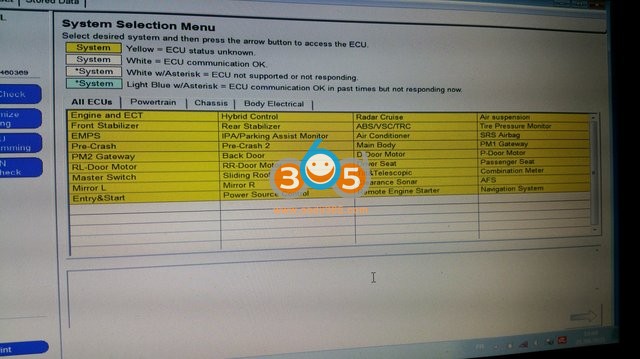
There are many menus

For each system there is a screen giving the possible fault codes, a screen giving the state of the system with the parameters then an “active test” screen.

Mini VCI Techstream Lexus RX450h 2014 Review  3

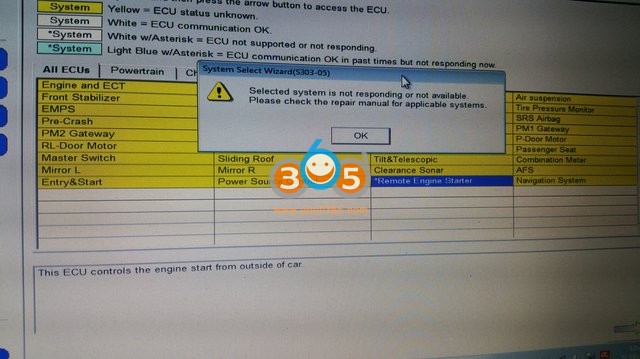
Some configurations are blocked because they are not used in Europe

Mini VCI Techstream Lexus RX450h 2014 Review  4


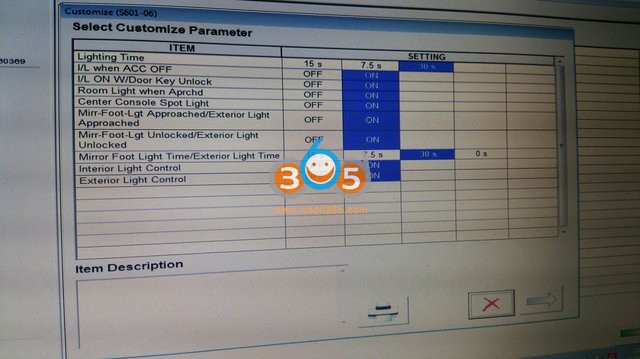
There are customizations

Mini VCI Techstream Lexus RX450h 2014 Review  5

The information is detailed (example sunroof)

Mini VCI Techstream Lexus RX450h 2014 Review 6

We find roughly the usual engine parameters.
A good practice is to do a global check of the ECUs as soon as TechStream is launched (“Health Check”), and to save the file.

In order to use it properly during maintenance, you will need access to the Toyota/Lexus repair manual.

In fact Techstream really shines with the Rx hybrid models. On the Land cruiser of memory there were few essential things. The check of the condition of the injectors was appreciated by my buyer.

A useful feature was the bleeding of the brakes: I never dared to use this function for fear of planting the brake system.

I find HA very friendly and educational. I love to show that the auto gives the value of the 12v battery on my phone just by approaching. Afterwards, I’m not a fan of “optimal” driving, but having occasional access to certain parameters is interesting and sometimes surprising (very low engine speed when cruising, for example)

I would have to do the main battery test but it doesn’t seem obvious and then I don’t really want to discover that my main battery has a problem. A bit like medical exams.

In any case, all of this is interesting and there is a lot to learn!

Tuesday, August 10, 2021

Free Download Toyota Techstream V16.20.023

 TOYOTA Techstream V16.20.023 (08/2021) is newly tested working like a charm.

Techstream is the replacement for diagnostic tester. It combines the functionality of TIS and scantool in a single portable device. With TIS techstream, technicians can simultaneously view / analyze on-board vehicle data, review relevant TIS service documents, and reprogram vehicles from the driver’s seat via wireless connection to TIS.

TOYOTA Techstream V16.20.023

Driver MVCI for x64 OS – Techstream 16.20.023 setup.exe Link:
https://yadi.sk/d/SkJ5W7dQLEhwSg

Password: NO PASS!!!

Size:  245MB

Version: Toyota Techstream V16.20.023 (08/2021)

Language: Chinese, Spanish, German, French, English, Italian, Japanese

Source: forum and need key by providing the ID and area.


Toyota Techstream V16.20.023 workable cable:

Mini VCI cable (both item no. SV46-D1 and item no. SV46-D at obdii365.com) for toyota-scion-lexus vehicles.


Toyota Techstream V16.20.023 Installation:


Part 1. install Techstream software

Open the folder of Toyota Techstream V16.20.023 [2021.08], then right


Click on “Toyota Techsteam V16.20.023” and select “Run as administrator.

install  TOYOTA Techstream V16.20.023 1


Choose Setup Language.

Preparing setup.


Install Techstream Software on your computer.


Accept the terms of the license agreement.


Please enter your name and the name of the company for which you work.


Click on “Install”.


InstallShield Wizard has successfully installed Techstream software.

install  TOYOTA Techstream V16.20.023 2


Part 2. Run TS_Loader


Right click on “Techstream” on the desktop and select “Open file location”.

Then right click on “TS_Loader” and select “Send to” Desktop (create shortcut)

install  TOYOTA Techstream V16.20.023 3

install  TOYOTA Techstream V16.20.023 4

Part 3. Open Toyota Techsteam V16.20.023 software


Select Area (Japan, North America, Europe, Other).

install  TOYOTA Techstream V16.20.023 5


We select “North America” and then “English”, then enter the dealer name, dealer code and dealer phone in the Techstream Configuration.

install  TOYOTA Techstream V16.20.023 6


Open the software of Toyota Techsteam V16.20.023 and ready to use.

You can configure the area and language.


That’s all.


Thanks


www.obdii365.com

Wednesday, May 12, 2021

Toyota Techstream V16.00.017 Installation Guide

 Latest Version Of Toyota Techstream V16.00.017 tested verified working with MINI VCI J2534 cables (SV46-D1 and SV46-D). Obdii365.com provides software and driver installation tutorial here.


Software can be downloaded free on previous post

Free Download Toyota Techstream V16.00.020 V16.00.017 Crack


How to Install Toyota Techsteam V16.00.017 on Win10 (64bit)?

System requirements: WINDOWS 7/8/8.1/10 x32/x64

Here we tested it on Win10 64bit system.  


Main steps:

Step 1: Install Setup and Framework

Step 2: Install driver and set com port

Step 3: Activate software via patch

Step 4: Run software


Step 1: Install setup

toyota-techstream-16-00-017-install-1


Copy and paste Techstream V16.00.017 and driver folder to desktop

toyota-techstream-16-00-017-install-2

Open Techstream V16.00.017 folder, run Techstream_Setup_V16.00.017
Install InstallSheield Wizard
Accept license agreement

toyota-techstream-16-00-017-install-3

Enter user name: 123 and Company name: 567, press Next to continue

toyota-techstream-16-00-017-install-4

Press Install until finished

toyota-techstream-16-00-017-install-5

Install NET Framewoork 4.7.2
Accept license terms

toyota-techstream-16-00-017-install-6

Press Install until completed


Step 2: Install driver

toyota-techstream-16-00-017-install-7

Install MVCI driver for 32bit or 64bit system, here we install driver for 64bit

Open driver folder and extact Driver MVCI. Run driver for 64bit
Select destination folder
Select create a desktop icon
Then press Install

toyota-techstream-16-00-017-install-8

Finish install MVCI driver

toyota-techstream-16-00-017-install-9

Run MVCI MultiDriverX64 on deskotp as Administrator
Select firmware version 1.4.8 and Install
Successfully installed the driver version 1.4.8

toyota-techstream-16-00-017-install-10


Go to Device Manager->Other Devices-M-VCI->Update Driver Software

toyota-techstream-16-00-017-install-11

Browse for driver software on destination folder you saved previously

toyota-techstream-16-00-017-install-12

Windows successfully updated your driver software

toyota-techstream-16-00-017-install-13

Go to Device Manager->Other Devices->USB Serial Port->Update Driver Software
Browse for driver software on destination folder C:/Program Files(x86)/Autokent MVCI MultiDriver X64/1.4.8
Windows successfully updated your driver software

toyota-techstream-16-00-017-install-14

Make sure the COM Port is set to #4


Step 3: Activate Techstream 16.00.017

Run Techstream software deskotp shorcut
Select Area region i.e Europe
Select language

toyota-techstream-16-00-017-install-15

Enter Repair Name, Code and Phone all with number “1” and press OK

toyota-techstream-16-00-017-install-16

If techstream asks for an activation/registration key, press Cancel to exit

toyota-techstream-16-00-017-install-17

Go to Setup->VIM Selection->Select interface as MVCI Autokent-X64 1.4.8

toyota-techstream-16-00-017-install-18

Copy and paste Techstream Patch 64bit from software folder to desktop
Run Techstream Patcch 64bit on desktop

toyota-techstream-16-00-017-install-19

Select vehicle information


Step 4: Run software 
Software is ready to use

toyota-techstream-16-00-017-install-20

toyota-techstream-16-00-017-install-21


http://blog.obdii365.com/2021/05/12/install-and-activate-toyota-techstream-16-00-017-software/

Toyota Techstream V16.00.020 V16.00.017 Free Download

 Here comes the latest Version Of Toyota Techstream V16.00.020 / V16.00.017 for 1996-2022 for Toyota , Lexus and Scion including American LHD and UK RHD cars and including all CANBU / CAN BUS based.


Toyota Techstream V16.00.020

https://disk.yandex.com/d/uwmVBJUe3pf6_w


Techstream V16.00.017:
https://mega.nz/file/p5UwhbpL#uX8uBg4TGeYUtQQRU5ZBz5Q9LswlrxrhwfXYAYyUzS0

No password.  No password. 

100% tested safe link

https://share.weiyun.com/VzDZtfu8

password: h7vbqb

File including

  1. Mini VCI driver (x64 & x86)
  2. Techstream older version 12.20.024, 13.00.022
  3. Techstream V16.00.017
  4. Techstream Patch

toyota-techstream-v16-00-0017

System requirements: WINDOWS 7/8/8.1/10 x32/x64

Supported language: English, German, French, Spanish, Italian, Russian, Chinese, Turkish etc

mini-vci-toyota-techstream-v16-00-020-1

mini-vci-toyota-techstream-v16-00-020-2


It’s Cover Europe, UK, And North America Cars

– Loader Included, No Need Key Activation

– Calibrations File From 2000 To 2018, Are Included Also !!!, Installation Video Included Also.

– Toyota Techstream Can Work With Any J2534 Interfaces ( AVDI, Openport, Autel J2534, MongoosePro…)

– J2534 Drivers/Software Need To Be Installed Firstly ( Important )


For the above link, please try them at your own luck because it is copied from dk and mhh forum by the moderator.


obdii365.com engineer already tested Techstream V16.00.020 with their own Mini VCI cable (both SV46-D1 and SV46-D). And make a video on how to install Techstream V16.00.020 software.


Enjoy


www.obdii365.com

Tuesday, March 16, 2021

Techstream Erase Toyota C1336 Fault Code

You can use Techstream with few steps can easily clear C1336 fault code on Toyota/Lexus.


C1336 means "zero point calibration of yaw rate sensor undone." The yaw rate sensor feeds into the VSC, so if it isn't working, the VSC won't work and you'll get the "VSC / TRC" light.
 tec


How to clear C1336 fault code with Toyota techstream?
techstream-clear-c1336-fault-code-1

techstream-clear-c1336-fault-code-2

techstream-clear-c1336-fault-code-3

techstream-clear-c1336-fault-code-4

techstream-clear-c1336-fault-code-5

techstream-clear-c1336-fault-code-6

Done. 
Test drive the car and no vsc or traction lights.


Tuesday, March 9, 2021

Can Techstream Program 2019 RAV4 Key?

 Question:

I am having a hard time trying to get a second key programmed with techstream v14. It appears that you must now copy a seed code and paste it to the TIS site.

Has anyone found a work around to getting the 2019s programmed for a second or third key?

I even downgraded to ver 12 & 13 , ver 12 doesn't even recognize the suv when im in the classic key registration menu and 13 has the same issue as above.


Answer:

Yes, techstream will program key for 2019 RAV4.

Toyota changed the rule for add keys for some cars from 2019. Now you need passcode for adding second key. You need to buy Security Profession subscription and calculate passcode from Toyota official.

techstream-passcode-1

techstream-passcode-2

If you don't want to pay for software license, go for Lonsdor K518ISE, it is a good solution via OBD.

For 2019 RAV4, it requires Toyota all keys lost online calculation license.

Supports All Keys Lost - Latest Toyota 0410 Smart Keys -- Avalon - RAV4 - Wildlander - Highlander.


For example:

Program Lexus UX250h 2019 All Key Lost with Lonsdor K518ISE + H0440c

Toyota shares same operation but use different emulator keys.


http://www.key-programmer.org/2021/03/10/will-toyota-techstream-program-key-for-2019-rav4/